Image Resizer
SwiperyLabArt & Design
4.919.00 Reviews
- Version
- 1.0.15
- Installs
- 10.00K
- Age Rating
- Everyone
Screenshots
Our Review of Image Resizer
 Analysis by Appyee
Hey there! So, I recently got my hands on this nifty app called Image Resizer, and I have to say, it's been quite the game-changer for my photo editing needs. Let me walk you through my experience with it and why you might want to give it a whirl.
What makes this kind of tool useful is not dramatic editing; it is removing small obstacles between a picture and the place it needs to go. A photo may be too large for a form, framed awkwardly for a post, or saved at dimensions that make it clumsy to share. I find it helpful to think of Image Resizer as a practical utility for those jobs, rather than as a replacement for an editor built for creative retouching.
Image Resizer is an Art & Design app from SwiperyLab. It is free to download, rated for Everyone, and has a 4.8 average from around 590 ratings, with over 10,000 installs. It arrived in March 2025, and version 1.0.14 is listed for devices running Android 9 or newer. Those details put it in the approachable, focused-tool camp: easy to try for a one-off task, but most valuable if resizing and preparing pictures comes up regularly.
Why You Might Need It
Ever found yourself in a pinch, needing to resize a photo but not wanting to dive into complicated software? Yeah, me too. That’s where Image Resizer swoops in to save the day. This app is like the Swiss Army knife of image editing, perfect for those quick touch-ups or detailed adjustments on the fly.
A useful way to start is with one image and a clear goal. If a marketplace form rejects a picture, decide whether the problem is its framing or its dimensions before changing anything. Cropping removes parts of the composition; resizing changes the output dimensions. They are related, but not interchangeable. Keeping that distinction in mind helps avoid trimming away something important when a smaller image would have solved the problem.
For a simple everyday example, imagine taking several pictures of a receipt, a product, or a handmade item and needing cleaner versions to share. I would select the photo, check whether the whole subject is visible, crop only if the edges distract, then set the output size that suits the destination. If the same requirement applies to several pictures, I would wait until the target dimensions are clear and process them together. That order reduces the chance of doing the same work twice.
Sleek and User-Friendly Interface
First impressions matter, right? Well, the moment you open the app, you’re greeted with a clean, intuitive interface that makes navigation a breeze. You don’t have to be a tech wizard to figure things out here. Everything is laid out clearly, with icons and labels that guide you every step of the way. It’s like the app knows exactly what you need, even before you do!
The home screen presents you with options to choose images directly from your gallery, or you can use the camera to snap new pics. The seamless integration with your device’s storage means no annoying loading times or glitches.
That direct start suits quick jobs, although I would still pause before selecting a whole group of photos. A gallery often mixes originals, screenshots, downloads, and already edited copies. Taking a moment to identify the intended source images is a small habit that prevents confusion later, especially when several files look almost identical. For an occasional single picture, the straightforward entry point is more useful than a long chain of menus.
If you are preparing a new camera photo, it is also worth checking the image before you edit it. A tilted subject or a distracting margin may be easier to address with a crop or rotation than with a change in size alone. The app’s practical value lies in bringing these basic adjustments together, but the best result still depends on choosing the right operation for the job.
Features That Make Life Easier
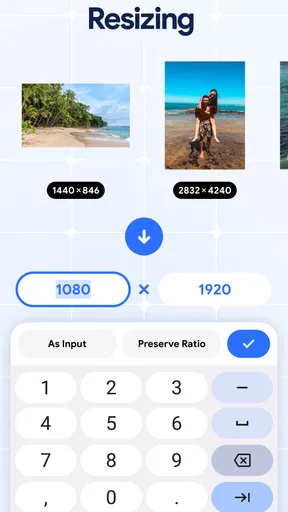
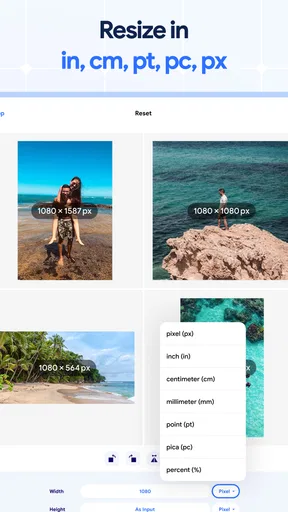
Now, onto the features. The app offers a plethora of resizing options, allowing you to adjust dimensions manually or choose from preset sizes. Whether you’re prepping images for social media, needing specific dimensions for a project, or just want to save some storage space, this app has got you covered.
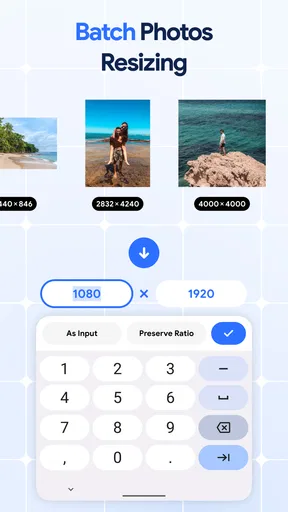
What I really dig is the batch processing feature. I mean, who has the time to resize photos one by one? Not me! With this feature, you can select multiple images and apply the same settings across the board – a real time-saver.
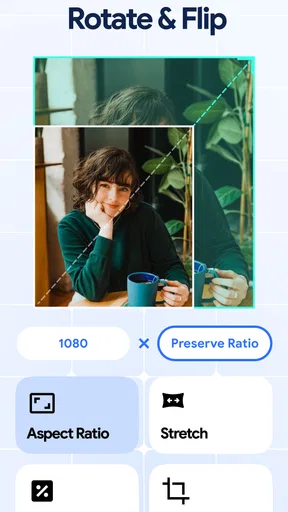
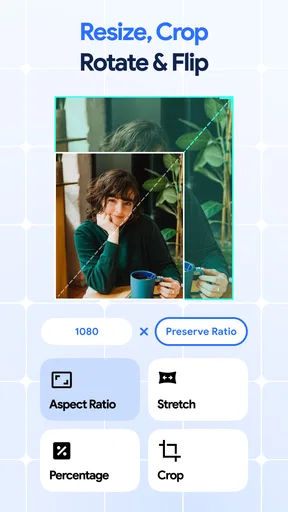
Aside from resizing, the app also provides basic editing tools. You can crop, rotate, and even adjust brightness and contrast. It’s perfect for when you need to make quick adjustments without hopping into a full-fledged photo editor.
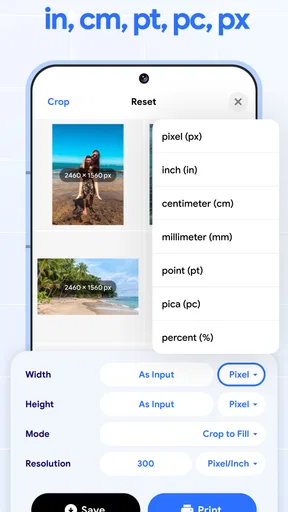
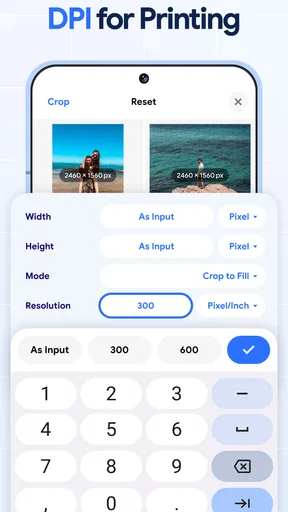
The ability to change DPI is especially relevant when a picture is being prepared for a document or a print-related workflow. I would treat that setting as a delivery requirement rather than a magic quality enhancer: changing a resolution value does not create detail that was never captured. If sharpness matters, start with the best original you have, then adjust dimensions and DPI to match the destination instead of expecting the number itself to improve the photograph.
Presets and manual dimensions serve different kinds of users. A preset can save thought when the destination has a familiar format, while manual entry is more dependable when a brief gives exact width and height. Before applying either, I would check whether the destination expects a particular shape. A square output and a wide banner can have the same general size but require very different framing, so cropping first may be necessary to keep the main subject from feeling squeezed or cut off.
Batch work is most reliable when the selected images genuinely share a purpose. For example, a set of product pictures intended for the same listing may benefit from consistent dimensions and a repeated crop. A mixed selection of portraits, landscapes, and screenshots is less suitable: one shared crop could remove faces in one image and leave empty space in another. I would group files by destination, not merely select everything that needs attention at once. That is a slightly slower start, but it usually means fewer corrections afterward.
When preparing a group, I would also keep a clear separation between originals and finished copies. That makes it easier to return to the source if a crop proves too tight or a later task needs a larger version. It is a useful precaution whenever an editing app can alter image dimensions, whether the immediate aim is to save space or meet a submission requirement.
Performance and Speed
One word: fast. I was genuinely impressed by how quickly the app processes images. You can go from selecting your photos to having them resized and saved in under a minute. No frustrating lag times or crashes, even when dealing with high-res images. This is where the app truly shines in comparison to some other options I’ve tried in the past.
Speed matters most when the workflow is repetitive. If I have a few pictures to prepare, the time saved by applying the same settings in one pass is more meaningful than a long list of advanced controls. Still, fast processing should not replace a quick visual check. I would inspect the result for a clipped subject, an unexpected orientation, or an overly dark adjustment before sharing it. A moment of review is cheaper than discovering a mistake after sending the image.
Compared with the usual alternatives, Image Resizer occupies a sensible middle ground. A phone’s built-in photo editor is convenient for a quick crop or rotation, but it may not be as focused when the task is to apply a repeatable size or DPI setting across a batch. A full photo-editing suite is better when you need layers, detailed retouching, masks, or a carefully designed composition. This app makes more sense when the job is specific and practical: change the dimensions, adjust the frame, and move on.
There is a trade-off in that focus. Someone who wants to refine skin, remove objects, build graphics, or manage a large professional asset library will likely outgrow a lightweight resizer. It is not the tool I would choose for delicate creative work where every image needs a different treatment. On the other hand, using a complex editor for a routine dimension change can feel like bringing a workshop to a small repair. The right choice depends on whether the goal is preparation or creation.
Keeping It Secure
In today’s world, security is a big deal, and Image Resizer doesn’t skimp on this front. The app assures that your images are processed locally on your device, meaning they aren’t uploaded to any servers. This is a huge plus for anyone concerned about privacy. Your photos stay with you, just the way it should be.
That local-processing approach is reassuring for ordinary personal pictures and especially useful when I would rather not send a private image to an online editing service just to change its size. It also makes the app a more natural fit when I need to work without turning a simple edit into a cloud-based handoff. I still recommend keeping the untouched original until the edited copy has been checked; privacy and careful file handling are separate parts of a sensible workflow.
For people who use resizing to reduce file size, it helps to be realistic about the result. Changing pixel dimensions can make an image more manageable, but a smaller image may show less detail when enlarged later. I would save a smaller version for the specific purpose that needs it and retain the full-size original for future printing or editing. That avoids treating one export as a universal replacement for every use.
Who’s It For?
Honestly, anyone and everyone who deals with images on their mobile device. Whether you’re a professional photographer needing quick adjustments on the go, a social media enthusiast prepping posts, or just someone who loves snapping pics, this app caters to a wide audience.
It’s perfect for beginners due to its simplicity, yet it offers enough features to keep more advanced users satisfied. Plus, it’s lightweight, so it won’t hog your device’s resources.
I would particularly recommend it to people who repeatedly send pictures through forms, messaging, or project workflows and need control over dimensions without opening a desktop editor. A small business owner preparing a consistent set of item photos, a student arranging images for a presentation, or a hobbyist sharing pictures with a group can all benefit from having resize, crop, rotation, flip, and DPI adjustments in one mobile tool.
It is less compelling for someone who edits only once in a while and is already happy with the built-in controls on their phone. It is also not the right choice if the real need is advanced retouching or graphic design rather than image preparation. I would skip it for a workflow that demands intricate color grading, layers, or a polished poster layout; those tasks call for a more capable editor. For a person who often needs a correctly sized file and little else, its narrow focus is a strength rather than a drawback.
One practical habit for regular users is to decide on a few repeatable targets for common jobs, then choose the appropriate setting deliberately each time. For instance, images for a particular form may need one set of dimensions, while pictures meant for a family chat may need a different balance between detail and convenience. Keeping those jobs mentally separate makes batch processing safer and prevents an old setting from being applied to a new destination by mistake.
Another helpful check is orientation. A group containing both portrait and landscape images can behave differently under one shared crop or dimension choice. If every image must fit the same frame, some will naturally lose more of their edges than others. I would review the previews or outputs individually before considering the batch finished, especially when people, labels, or product details sit close to the borders.
For a one-off resize, the main question is usually whether the destination asks for exact dimensions, a general shape, or simply a smaller file. Exact requirements favor manual dimensions; a familiar, standard destination may make a preset quicker; and a composition problem calls for cropping before resizing. That simple decision tree is more useful than changing settings at random, and it helps a newcomer get a clean result without needing to learn a complicated editing workflow.
The app’s version 1.0.14 and Android 9 minimum make it worth checking device compatibility before planning to rely on it, particularly on an older phone. If it is compatible, the no-cost entry point lowers the barrier to trying it on a real task. I would test it first with a copy of an unimportant image, learn where the finished file appears in my normal workflow, and only then make it part of a routine for important documents or client-facing pictures.
Conclusion
All in all, Image Resizer is a solid choice if you’re looking for an efficient, user-friendly app to handle your photo resizing needs. Its blend of simplicity, speed, and functionality makes it a must-have tool in your digital toolbox. So go ahead, give it a try and see how it transforms your photo editing routine. You can thank me later!
My honest recommendation is to judge it by how often you need controlled, repeatable image preparation. If you regularly resize several pictures, adjust framing, or need to change DPI from your phone, this focused tool can spare you a detour into a much larger editor. If your edits are mostly artistic or highly individual, a more complete photo app will be a better home for that work. Used for the jobs it is built around, Image Resizer is an approachable utility that makes a common chore easier without asking you to turn it into a hobby.
Verdict
Strengths of Image Resizer
- User-friendly interface for easy navigation.
- Supports multiple image formats seamlessly.
- Batch processing saves time on resizing tasks.
- High-quality output with minimal distortion.
- Quick sharing options directly from the app.
Limitations of Image Resizer
- Limited free version features.
- Occasional ads in the free version.
- No integration with cloud storage services.
- Advanced options can overwhelm beginners.
- Requires in-app purchases for premium tools.
Similar Picks in This Category
View All
Canva: AI Photo & Video Editor
Canva4.8

PENUP – Drawing-sharing SNS
Samsung Electronics Co., Ltd.4.5

Crafto
Kutumb App4.6

Sketchbook
Sketchbook4.1

ibis Paint X
ibis inc.4.5

Adobe Express: AI Photo, Video
Adobe4.6
Frequently Asked Questions
What platforms is Image Resizer available on?
Image Resizer is available for both Android and iOS platforms. You can download the app from the Google Play Store or the Apple App Store, ensuring compatibility with a wide range of devices. The app is designed to function smoothly across various operating systems, offering a seamless user experience.
Does Image Resizer support batch processing?
Yes, Image Resizer supports batch processing, allowing users to resize multiple images simultaneously. This feature is particularly useful for photographers and designers who need to process large volumes of images quickly, ensuring efficiency and saving significant time compared to resizing images individually.
What image formats does Image Resizer support?
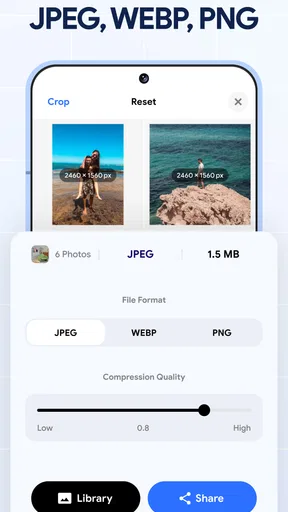
Image Resizer supports a wide range of popular image formats, including JPEG, PNG, BMP, and GIF. This versatility ensures that users can work with most types of image files without needing to convert them beforehand, making the app highly convenient for various resizing tasks.
Are there any in-app purchases or ads in Image Resizer?
Image Resizer is available as a free download with optional in-app purchases. These purchases can unlock premium features or remove ads, providing an enhanced user experience. While the free version is fully functional, some users may prefer the ad-free experience offered by the premium version.
Is it possible to maintain image quality after resizing with Image Resizer?
Image Resizer is designed to maintain the highest possible quality of images after resizing. The app uses advanced algorithms to ensure that resized images retain their clarity and sharpness, reducing the risk of pixelation or quality loss. Users can adjust the resolution to suit their specific needs.
